Configuration
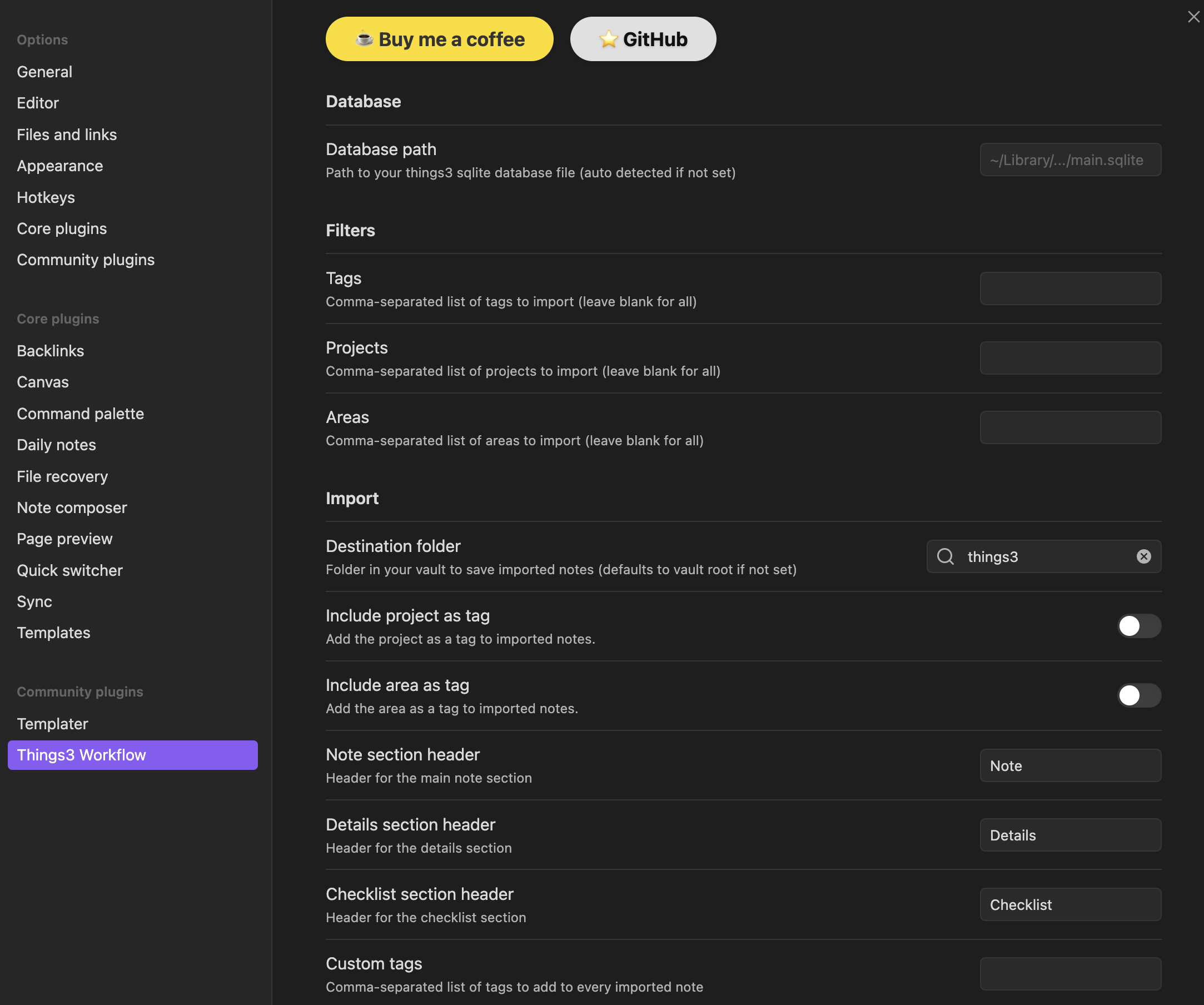
All configuration is managed via the plugin's settings tab in Obsidian. Each option is described below.
Database Path
Set the path to your Things 3 SQLite database. On macOS, this is usually auto-detected. You can override it if needed.
Filters
By default, all tasks are imported. You can set filters to limit which tasks are imported:
- Tags: Comma-separated list to filter imported tasks by tag.
- Projects: Filter by project name(s).
- Areas: Filter by area name(s).
Import Options
- Custom Tags: Add custom tags to imported notes (deduplicated).
- Include Project/Area as Tags: Optionally add project and area as tags.
- Custom Note Headers: Change section headers (default: Note, Detail, Checklist).
- Destination Folder: Choose where imported notes are saved in your vault. Default is the
$vault/things3.
See Usage for more details.
Installation
You can install the Things3 Workflow plugin directly from within Obsidian using the Community Plugins feature:
- Open Obsidian.
- Go to Settings (the gear icon in the lower left).
- Click on Community plugins in the sidebar.
- Click Browse and search for
Things3 Workflow. - Click Install next to the plugin.
- After installation, click Enable to activate the plugin.
Configuration Settings
| Setting Name | Description | Possible Values / Format |
|---|---|---|
| Things3 Database Path | Path to Things3 SQLite database | File path (auto-detected on macOS) |
| Tag Filters | Filter tasks by tags | Comma-separated list (e.g. tag1,tag2) |
| Project Filters | Filter tasks by projects | Comma-separated list (e.g. proj1,proj2) |
| Area Filters | Filter tasks by areas | Comma-separated list (e.g. area1,area2) |
| Custom Tags | Add custom tags to imported notes | Comma-separated list |
| Note Headers | Customize section headers (Note, Detail, Checklist) | Text |
| Add Project/Area as Tags | Add project and area as tags on import | Boolean (true/false) |
| Overwrite Handling | Overwrite notes if deleted but cache is missing | Boolean (true/false) |
How Tag, Project, and Area Filters Work Together
- You can specify one or more values for each filter (comma-separated).
- A task must match all specified filters to be imported (logical AND).
- For example, if you set Tag Filters to
work,urgent, Project Filters toWebsite, and Area Filters toMarketing, only tasks that have at least one of the specified tags and belong to theWebsiteproject and are in theMarketingarea will be imported.
Example:
| Task Name | Tags | Project | Area |
|---|---|---|---|
| Update site | work,urgent | Website | Marketing |
| Write blog | writing | Blog | Marketing |
| Fix bug | work | Website | Dev |
With filters:
- Tag Filters:
work,urgent - Project Filters:
Website - Area Filters:
Marketing
Only "Update site" will be imported, because it matches all three filters.
This plugin is licensed under the MIT License. See LICENSE.