Things3 Workflow
Motivation
As someone who values capturing fleeting thoughts and ideas, I found it challenging to quickly add notes to Obsidian while working on other tasks. Obsidian, while powerful, doesn't offer a seamless quick-capture experience. In contrast, Things3 provides an excellent quick entry feature—invoked with Cmd + Spacebar—that lets me instantly jot down what's on my mind through a lightweight interface. I wanted a way to bridge these two tools: to bring not only my tasks, but also their bodies and any checklist items, directly into Obsidian. When I couldn't find a plugin that met these needs, I decided to build my own solution.
Key Features
- Import tasks, projects, and areas from Things 3
- Configurable filters for tags, projects, and areas
- Customizable note headers and tag handling
- Prevents duplicate imports using a local cache file
- Overwrites notes if the cache is missing but the file exists
- Three command palette commands: Import, Clear Cache, Rebuild Cache
- Desktop-only (macOS; Things 3 is macOS-only)
For installation, configuration, and usage, see the sections below.
Demo Video
Configuration Settings
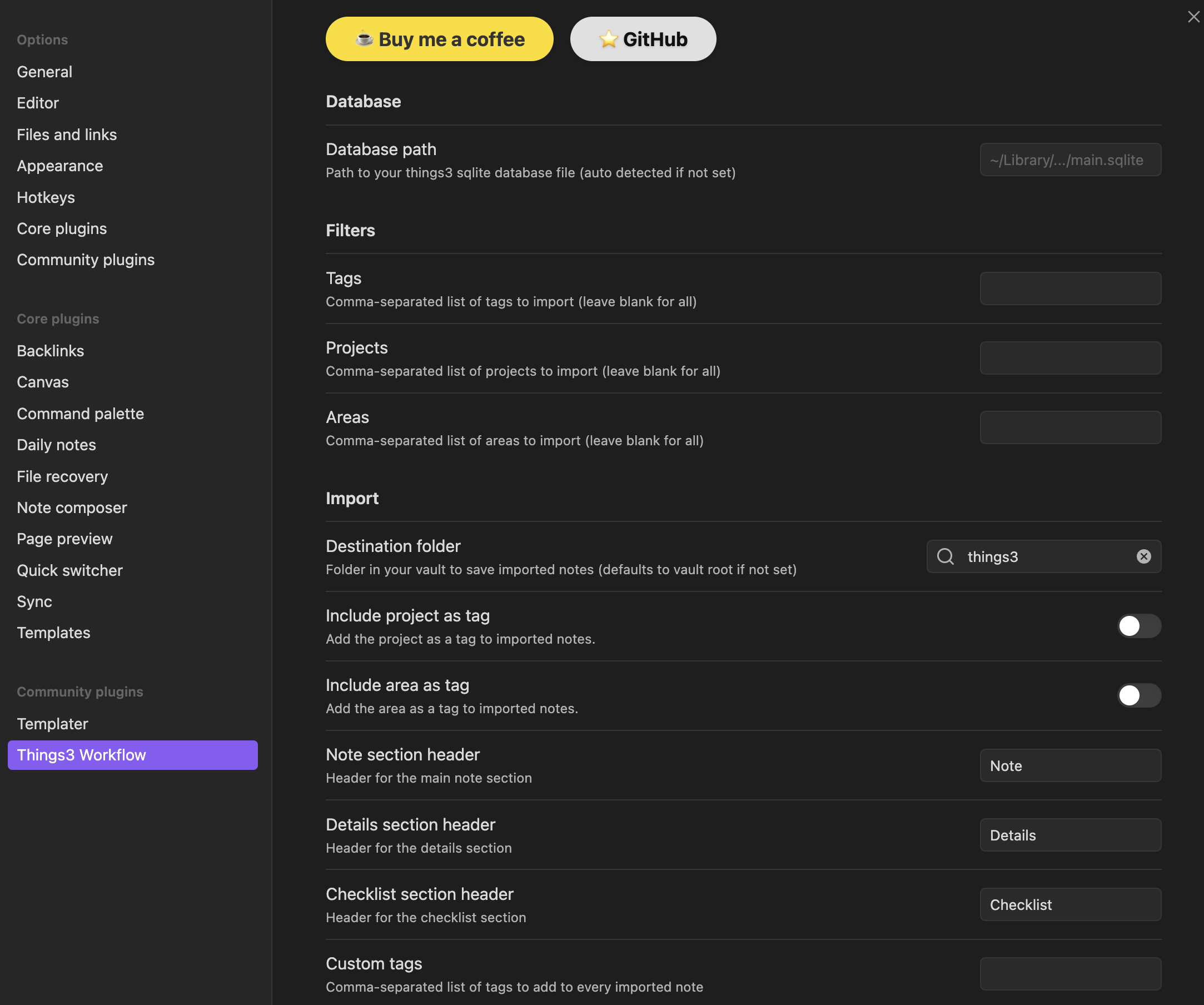
| Setting Name | Description | Possible Values / Format |
|---|---|---|
| Things3 Database Path | Path to Things3 SQLite database | File path (auto-detected on macOS) |
| Tag Filters | Filter tasks by tags | Comma-separated list (e.g. tag1,tag2) |
| Project Filters | Filter tasks by projects | Comma-separated list (e.g. proj1,proj2) |
| Area Filters | Filter tasks by areas | Comma-separated list (e.g. area1,area2) |
| Custom Tags | Add custom tags to imported notes | Comma-separated list |
| Note Headers | Customize section headers (Note, Detail, Checklist) | Text |
| Add Project/Area as Tags | Add project and area as tags on import | Boolean (true/false) |
| Overwrite Handling | Overwrite notes if deleted but cache is missing | Boolean (true/false) |
How Tag, Project, and Area Filters Work Together
- You can specify one or more values for each filter (comma-separated).
- A task must match all specified filters to be imported (logical AND).
- For example, if you set Tag Filters to
work,urgent, Project Filters toWebsite, and Area Filters toMarketing, only tasks that have at least one of the specified tags and belong to theWebsiteproject and are in theMarketingarea will be imported.
Example:
| Task Name | Tags | Project | Area |
|---|---|---|---|
| Update site | work,urgent | Website | Marketing |
| Write blog | writing | Blog | Marketing |
| Fix bug | work | Website | Dev |
With filters:
- Tag Filters:
work,urgent - Project Filters:
Website - Area Filters:
Marketing
Only "Update site" will be imported, because it matches all three filters.
Installation
- Download the latest release from the GitHub releases page.
- Open Obsidian and go to Settings (the gear icon in the bottom left).
- In the Settings menu, click on "Community plugins" in the sidebar.
- Click on the "Manage" tab.
- Click on "Install plugin from file".
- Select the downloaded
.obsidian-pluginfile. - After installation, enable the plugin by toggling the switch to the right of its name.
Usage
After installing and enabling the Things3 Workflow plugin, you can access its features through the command palette (Cmd + P) in Obsidian. The available commands are:
- Import: Import tasks, projects, and areas from Things 3 based on your configured settings.
- Clear Cache: Clear the local cache file, forcing a complete re-import of all data from Things 3.
- Rebuild Cache: Rebuild the cache file from the currently imported data, useful if you suspect the cache is out of date.
Importing Tasks
To import tasks from Things 3:
- Open the command palette (Cmd + P).
- Type "Import" and select the "Things3: Import" command.
- Wait for the import process to complete. A progress indicator will be shown in the status bar.
- Once the import is complete, you will see a summary of the imported items in a notification.
Clearing and Rebuilding Cache
To clear or rebuild the cache:
- Open the command palette (Cmd + P).
- Type "Clear Cache" or "Rebuild Cache" and select the corresponding command.
- Confirm the action in the prompt that appears.
- Wait for the process to complete. A progress indicator will be shown in the status bar.
- Once complete, you will see a notification indicating the success or failure of the operation.
Troubleshooting
- If you encounter any issues during installation or usage, please check the FAQ section or open an issue on the GitHub repository.
- Common issues include:
- Incorrect Things3 Database Path: Ensure that the path to the Things3 SQLite database is correct in the plugin settings.
- Permission issues: Make sure that Obsidian has permission to access the Things3 database file.
- Cache file not updating: If you notice that changes in Things 3 are not reflected in Obsidian, try clearing the cache and rebuilding it.
FAQ
Q: What is Things3 Workflow?
A: Things3 Workflow is an Obsidian plugin that allows you to import tasks, projects, and areas from Things 3 into Obsidian, with customizable filters and settings.
Q: How does the import process work?
A: The import process retrieves data from the Things3 SQLite database file and creates corresponding tasks, projects, and areas in Obsidian, based on your configured settings.
Q: What are the system requirements?
A: Things3 Workflow is a desktop-only plugin, designed for macOS. It requires Things 3 to be installed, as well as Obsidian.
Q: Can I use Things3 Workflow on Windows or Linux?
A: No, Things3 Workflow is currently only supported on macOS, as it relies on the Things 3 app and its database format.
Q: How can I contribute to the development of Things3 Workflow?
A: Contributions are welcome! You can contribute by reporting issues, suggesting features, or submitting code changes via pull requests on the GitHub repository.
Q: Where can I get help or support for Things3 Workflow?
A: For help or support, you can check the FAQ section, open an issue on the GitHub repository, or contact the developer directly via email.
License
This project is licensed under the MIT License - see the LICENSE file for details.
Acknowledgments
- Inspired by the need for a seamless integration between Things 3 and Obsidian.
- Thanks to the developers of Things 3 and Obsidian for their excellent software.
- Special thanks to the open-source community for their support and contributions.